RowClock App
The RowClock App is designed to run on Android phones or tablets with internet access.
Download the RowClock AppRequires enabling "Install from unknown sources" in Android settings.
Overview Screen
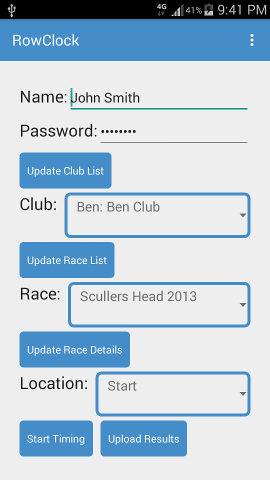
The Overview screen configures the application.
Name: Your name, used to help the race administrator identify who did the timing.
Password: Password for the race uploads. Can be blank if there hasn't been one set up for the race.
Update Club List: Populate the list of clubs from the website (this only includes clubs with upcoming races).
Clubs: List of Username: Club name. Select your club. You can only do this after you've clicked "Update Club List".
Update Race List: Populates the list of Races available for the club you've selected.
Race: List of upcoming races for your club. Select the race. You can only do this after you've selected the club and clicked "Update Race List".
Update Race Details: Populates the list of timing locations, and the list of entries. This wipes out any timings you've already done, so don't do this mid race.
Location: List of timing points (e.g. Start and End). Select where you'll timing. You can change this mid race if you change location.
Start Timing: Takes you to the Timing screen.
Upload Results: Uploads any results you've done for this race. (For any location)
In the unlikely event of problems uploading the results, you can click on the menu bar "..." and select "Emergency Email Results" to send the results directly to the race administrator.
Timing Screen
The Timing Screen shows the list of entries.
You can scroll around this list by swiping it up or down.
You can also scroll by entering a boat number in the Num: field (and then moving out of the field, e.g. by pressing "Next").
Short tap on the list to select an entry (the number appears in the Num: field).
Long tap to edit the number, time or comment (takes you to the Edit Timing screen).
GO: Records the current time against the currently selected boat.
Num: The currently selected boat. A short tap on the list populates this.
Notes: You can add notes about a boat (particularly useful if a boat is missing a number).
Save Times: Takes you back to the overview screen (the times are already saved).

Edit Timing Screen
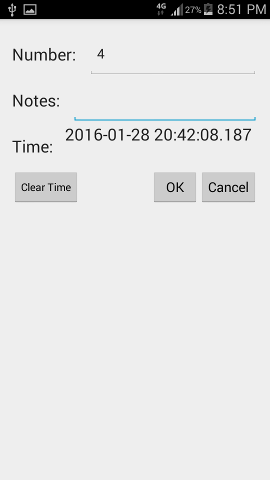
Number: You can change the number this time belongs to.
Notes: You can create or update any associated notes.
Time: Tap to edit the time recorded.
Clear Time: If you wish to remove the time for a boat, press this then OK.
OK: Accepts any changes and returns to the timing screen.
CANCEL: Rejects any changes and returns to the timing screen.
Tutorial
The following tutorial appears when you first launch the app. Use the arrows to navigate.
Airplane Mode
You can run this app in "Airplane Mode" (i.e. no internet connection). Some of the functionality will not work (updating the race details etc.), but you can start timing and use Emergency email results at the end.